# You run this, and R throws an error
mean(student_data$score)Positron Assistant and Databot
8.1 Overview
The use of AI tools to assist with research coding and analysis has grown rapidly in educational research. Early comparisons of hand-coding and computer-assisted methods showed meaningful trade-offs between the two approaches (Nelson et al., 2021), and recent work has demonstrated that large language models can perform qualitative coding with sufficient reliability for many research tasks — though with important caveats about where they work well and where they do not (Liu et al., 2025; Than et al., 2025). This chapter introduces two tools that bring LLM assistance directly into the R and Positron workflow, making these capabilities accessible without requiring researchers to leave their analysis environment.
Positron Assistant functions as an in-IDE research coding assistant: it can support drafting, debugging, and code interpretation without requiring researchers to move between multiple tools. In this chapter, we focus on two tools in the same ecosystem: Positron Assistant and Databot.
The examples in this chapter use Positron Assistant for chat and code suggestions, and Databot for exploratory analysis. As of September 2026, Posit has deprecated Databot in favor of Posit Assistant. We retain the examples and screenshots to show the workflow; readers setting up a new environment should consult the current Posit documentation.
The chapter is written for readers with different levels of R experience, with emphasis on practical workflows that can be validated and documented.
8.2 Positron Assistant in the Research Workflow
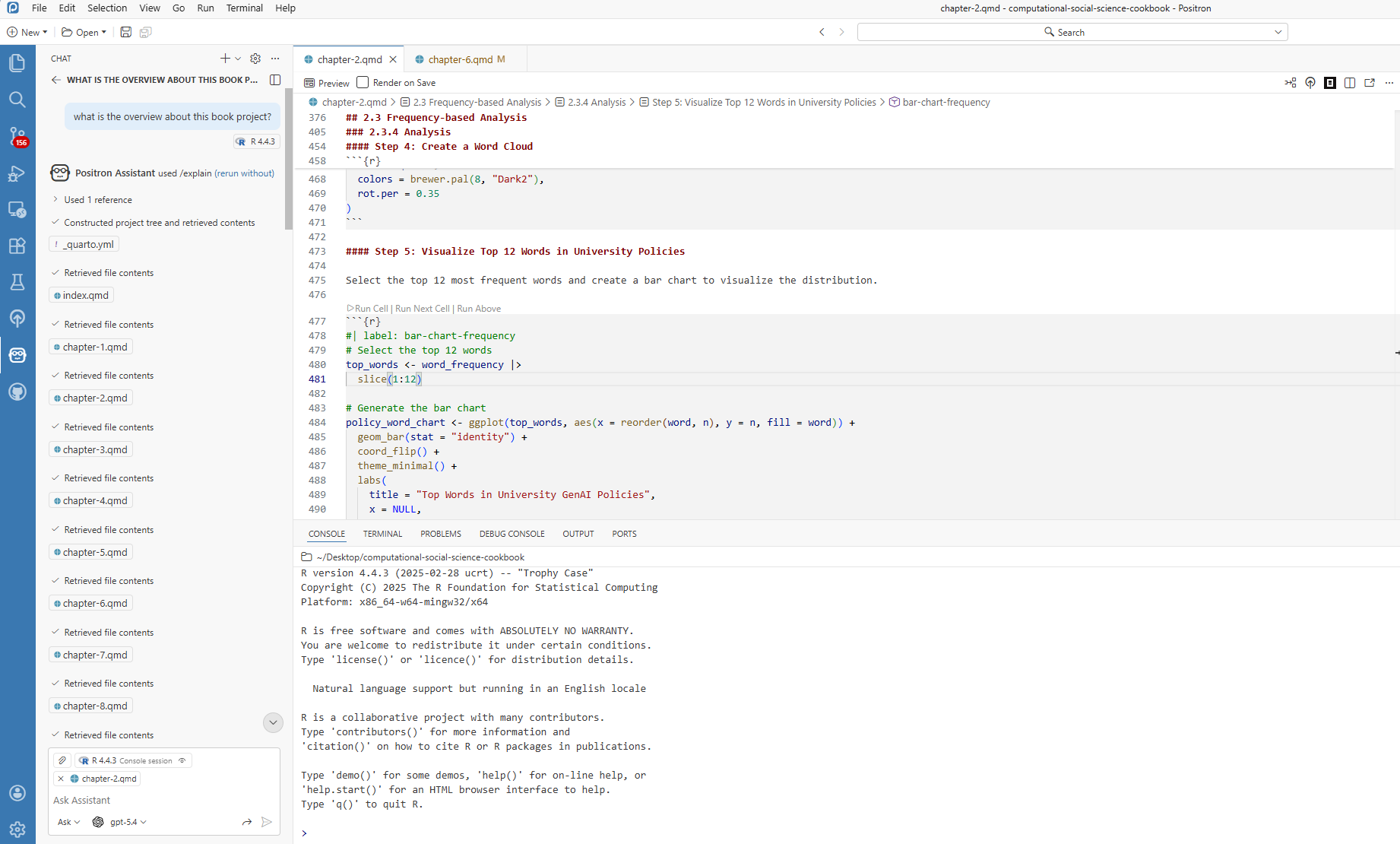
Positron Assistant can use project and workflow context to provide more relevant support than generic chatbot responses.
8.2.1 What Can It Do?
Core capabilities include:
Code Suggestions: Not just basic autocomplete, but context-aware snippets that can help you move from intent to working code more quickly.
Code Explanation: Select a code block and request an explanation in plain language.
Bug Detection Support: When code fails, Positron Assistant can inspect errors and suggest fixes.
Code Generation: Provide a plain-language request (for example, grouped summaries with missing-value handling) to draft R code.
Refactoring: Propose cleaner versions of working code and explain tradeoffs.
8.2.2 Why Would an Educational Researcher Want This?
For educational researchers, the value is not replacement of expertise but support for routine analytical tasks:
Saving time on repetitive tasks — for example, drafting common data-transformation patterns.
Learning new approaches — suggestions often expose analysts to alternative R workflows.
Reducing debugging overhead — error interpretation and fix suggestions are available in context.
Building confidence for newer R users — iterative feedback can lower the barrier to experimentation.
A gentle reminder: Positron Assistant is a tool to work with, not a replacement for your expertise as a researcher. It is great at generating code, but you are the expert on your data and research questions. Always review what it generates—treat it as a first draft that needs your expert polish.
8.3 Getting Started
8.3.1 What You Will Need
Before we dive in, make sure you have:
- Positron installed (menus and assistant setup may differ from the versions shown here; check the current documentation)
- At least one configured model provider (for example, Anthropic, GitHub Copilot, OpenAI, Amazon Bedrock, or Snowflake Cortex)
- R (version 4.1 or later, for the native
|>pipe used below) installed on your machine
You should also know your institution’s guidance on external AI tools before using non-public data.
8.3.2 Setting Things Up
Getting started is straightforward:
- Download and install Positron from the website
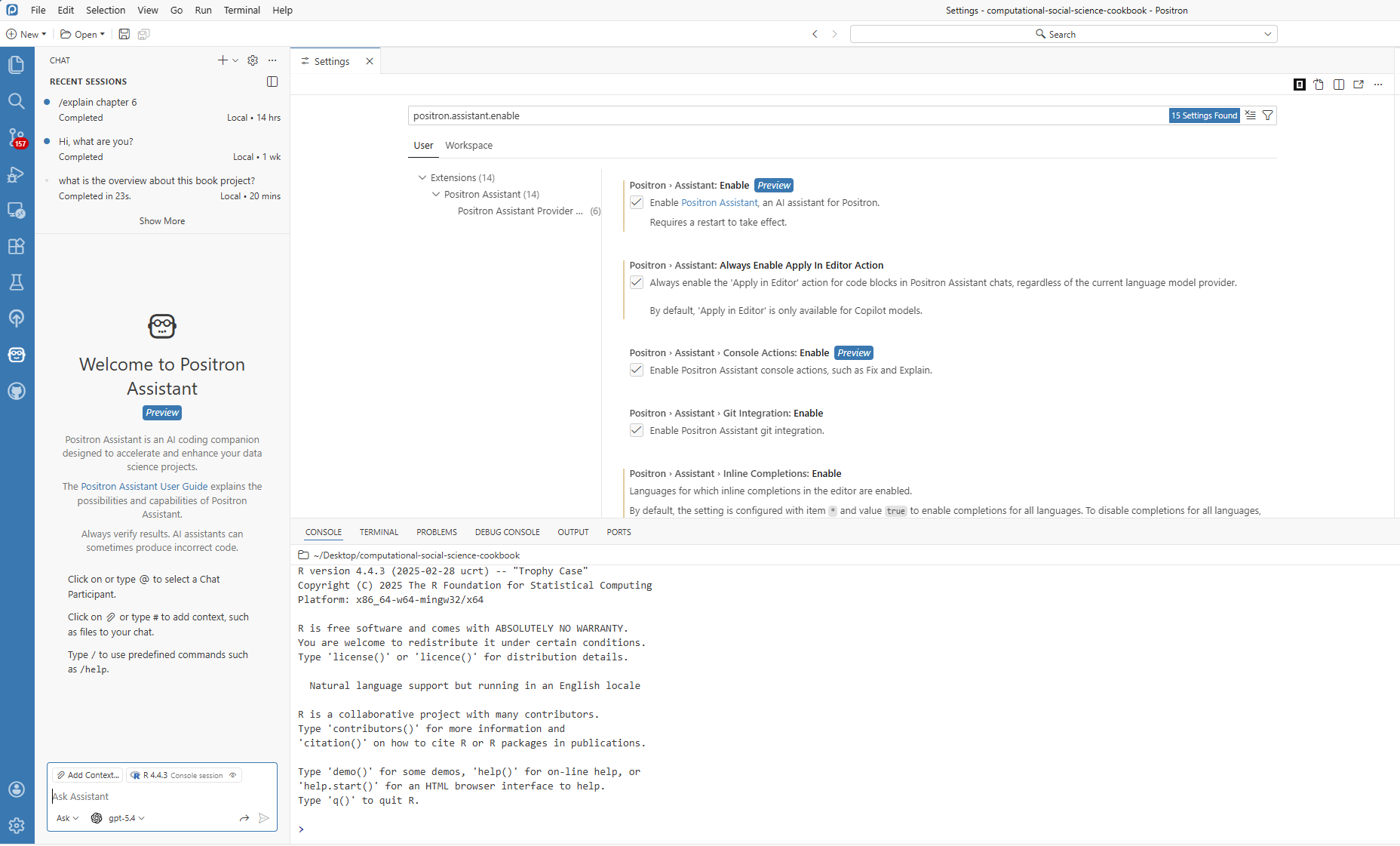
- Enable Positron Assistant in Settings.
- Setting:
positron.assistant.enable
- Setting:
- Reload Positron (restart or run
Developer: Reload Window) - Configure a provider with
Positron Assistant: Configure Language Model Providers - Open chat (robot icon or
Chat: Open Chat) and start asking questions
8.3.3 Making It Feel Right for You
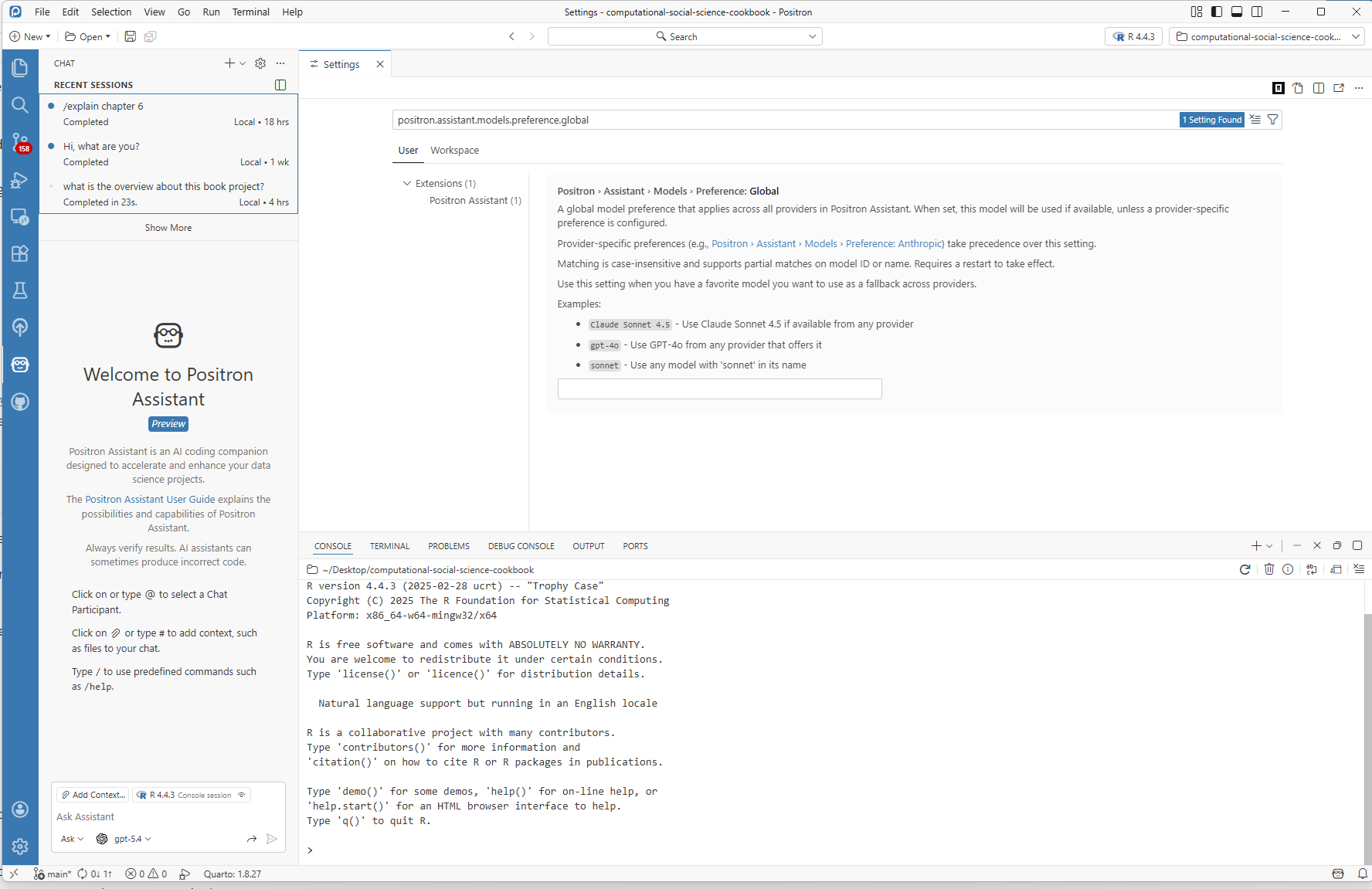
Figure 8.3 shows the global model preference setting. You can state preferences for the generated response in your prompt, including:
- How detailed responses should be (brief vs. thorough)
- Whether to use tidyverse-style code or base R
- Whether generated code should include comments
Choose a model suited to your work, and include these instructions when asking it for help.
8.3.4 Choosing a Provider for Research Work
If you are working in educational research settings, choose providers with your workflow constraints in mind:
- Compliance first: If your institution restricts providers, follow that policy before convenience.
- Cost awareness: API-key providers are often usage-based; budget and monitor token usage.
- Reproducibility: Record provider + model name in your methods notes.
- Stability: Keep one default model for a project to reduce output variability.
For most readers, a good starting strategy is simple: pick one approved provider, use one primary model for the project, and document those decisions.
8.3.5 Optional: Local Agent Setup with Continue + LM Studio
If your project requires local execution, you can run an assistant workflow entirely on your own machine by combining Continue in Positron with a local model served from LM Studio. This path is especially useful when your workflow requires tighter data control.
The screenshots below show local-model settings in Positron and the separate configuration used by Continue.
Distinguish the Positron and Continue settings.
Figure 8.4 shows local-model JSON settings in Positron. Continue uses a separate configuration file, shown in Figure 8.5.
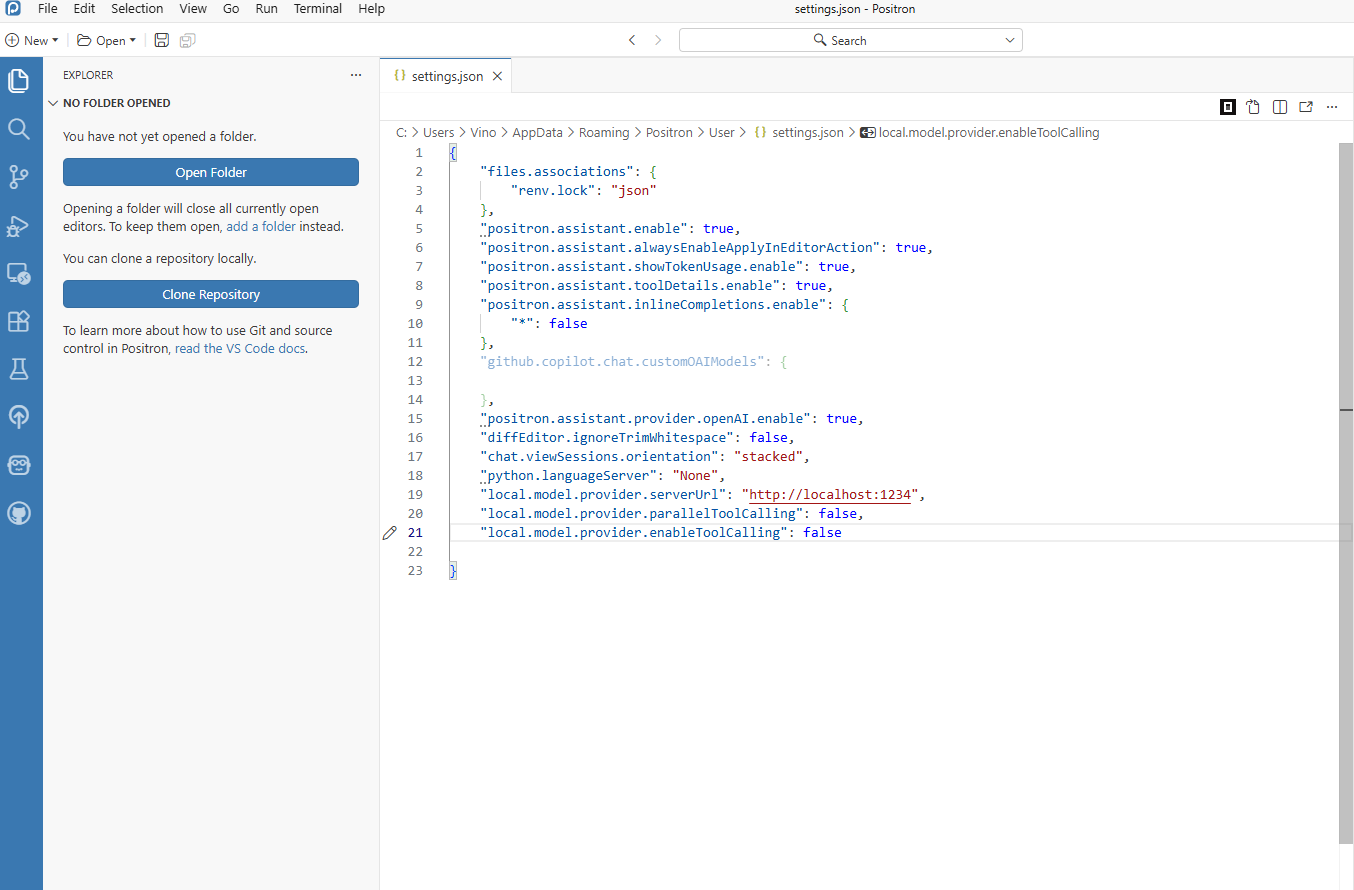
Figure 8.4. Positron JSON settings for local LM Studio endpoint configuration. Set up LM Studio and confirm the local server is running.
Open LM Studio, load your target model, and verify that its local API endpoint is active. Figure 8.5 shows the Continue client configuration for that endpoint; check the server status in LM Studio itself.
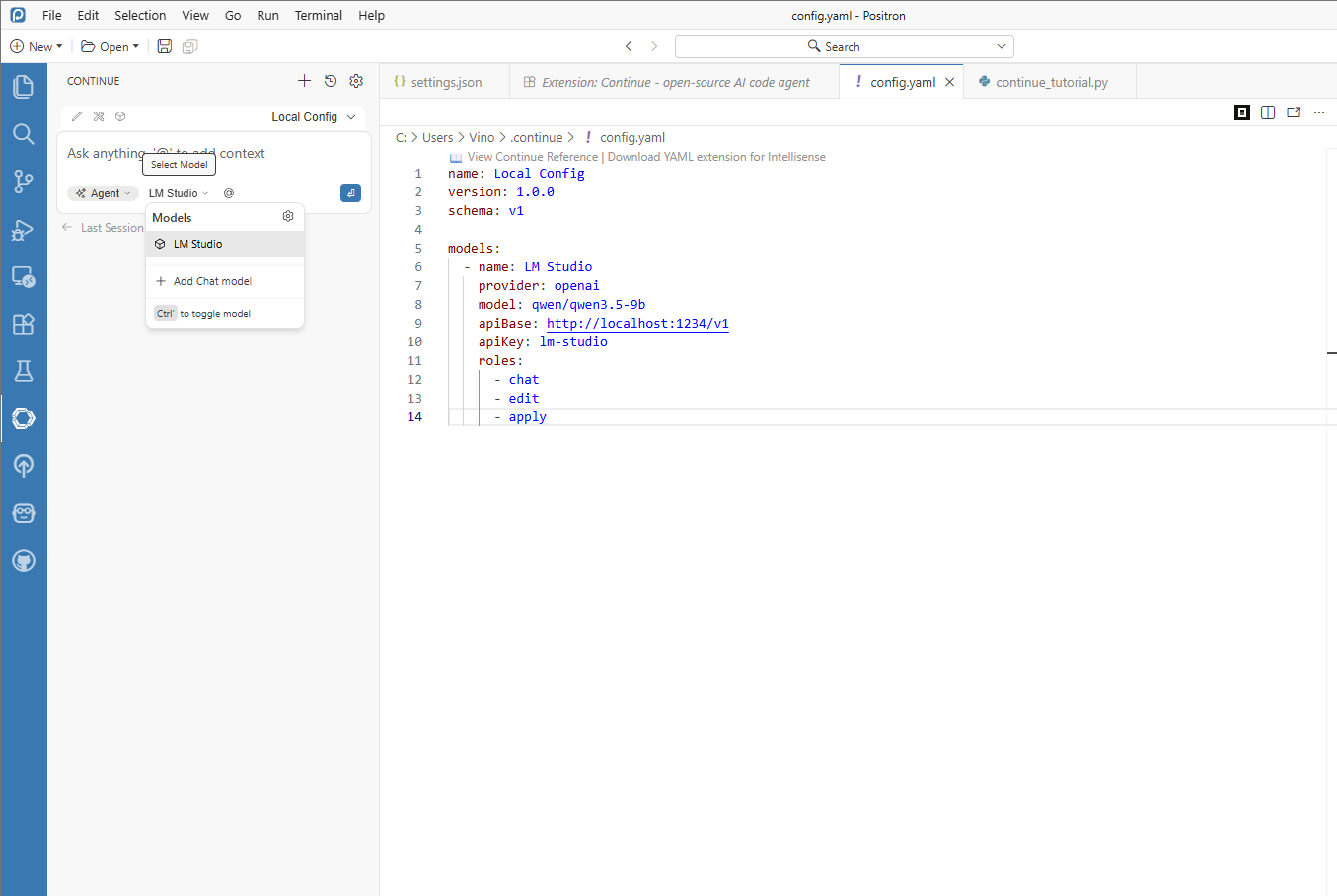
Figure 8.5. Continue configuration for an LM Studio endpoint in Positron. Configure Continue in Positron to use the LM Studio endpoint.
Find the Continue extension in Positron (Figure 8.6), then configure it to use the LM Studio endpoint. Figure 8.5 shows the client settings. Check that the model name matches the model loaded in LM Studio.
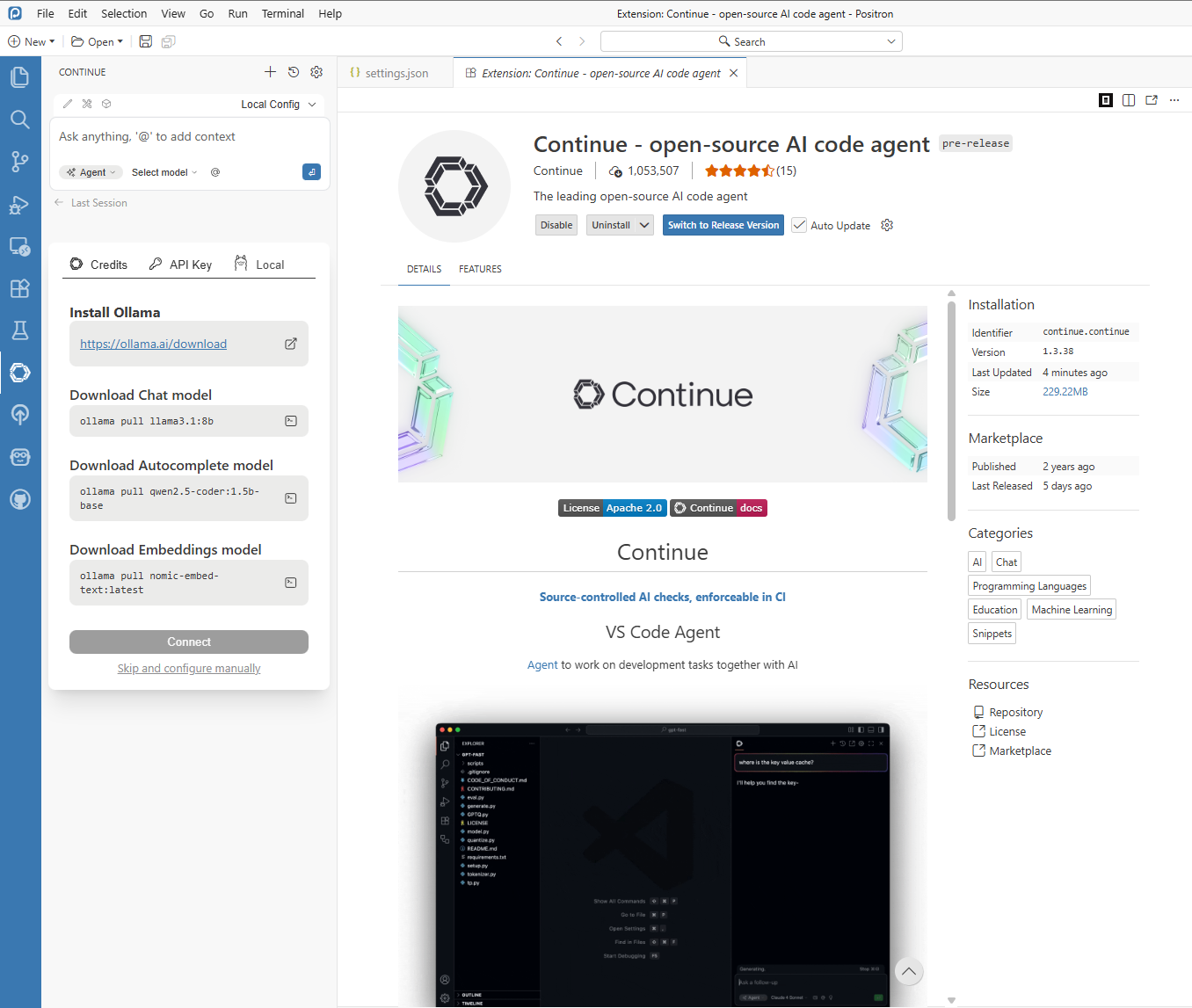
Figure 8.6. Continue extension page in Positron. Figure 8.7 shows an alternative YAML configuration using Ollama-hosted models. For the LM Studio workflow described here, use the configuration in Figure 8.5.
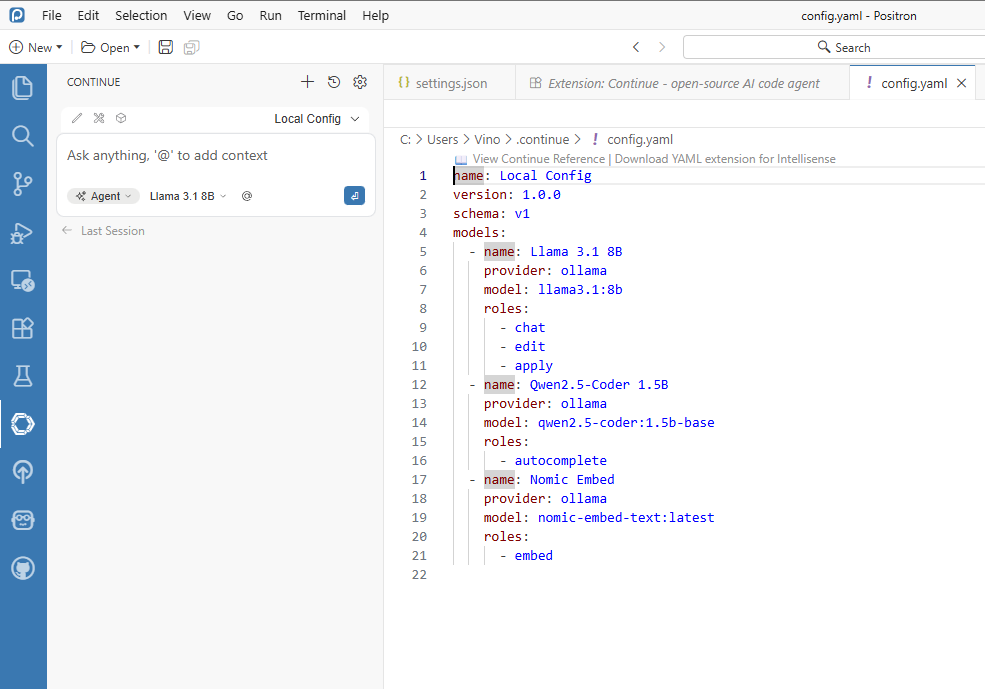
Figure 8.7. Alternative Continue YAML configuration using Ollama-hosted models. Run a quick in-IDE verification prompt.
Start with a simple prompt to check that the model responds, as in Figure 8.8. Then try a small R task, such as “Explain this dplyr pipeline,” and inspect the response for accuracy and latency.
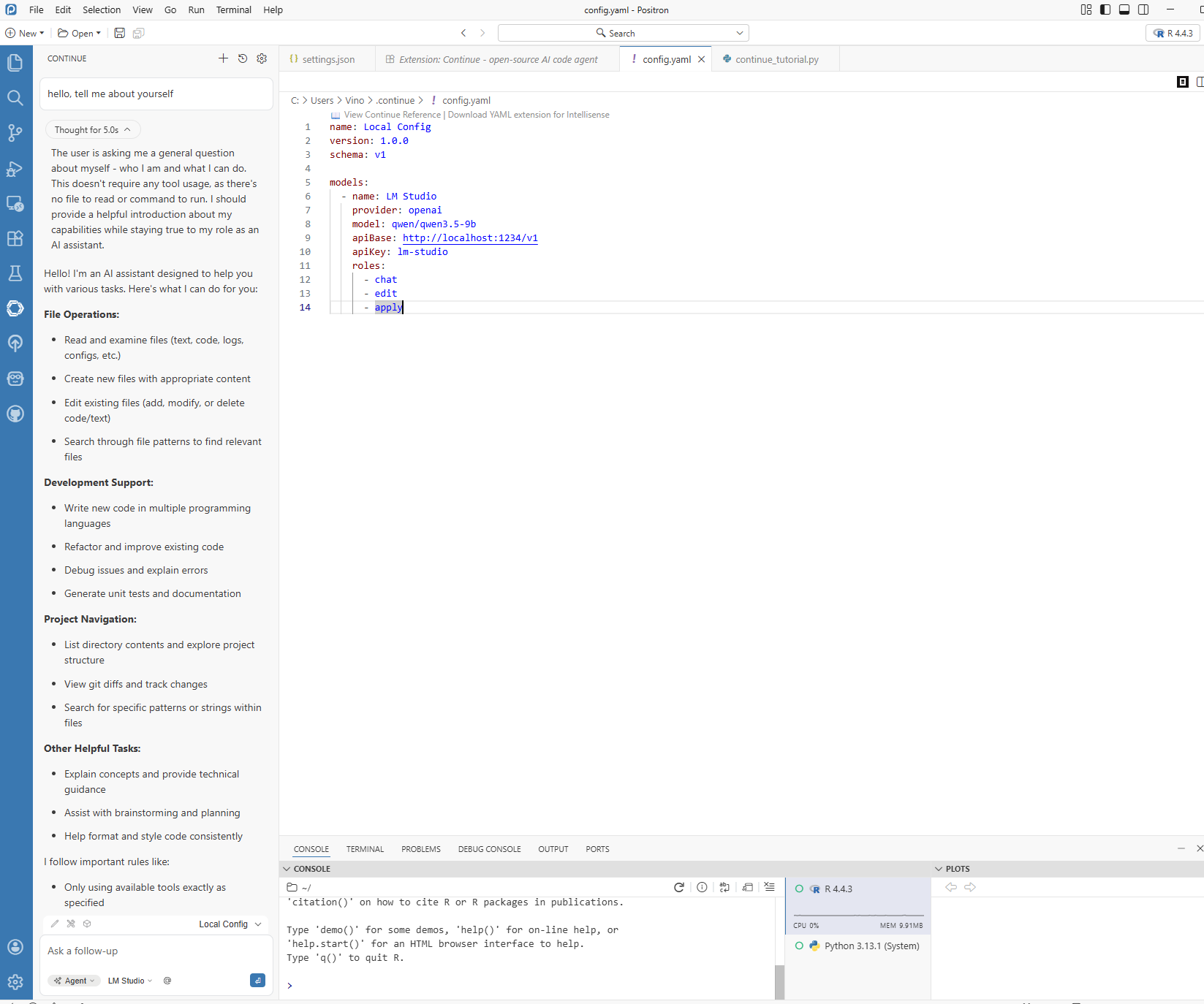
Figure 8.8. Basic response check in Continue with a model served by LM Studio. Run one concrete case example before using the workflow in research analysis.
Review the proposed edits, run the suggested tests, and inspect the results before using the workflow in research analysis.
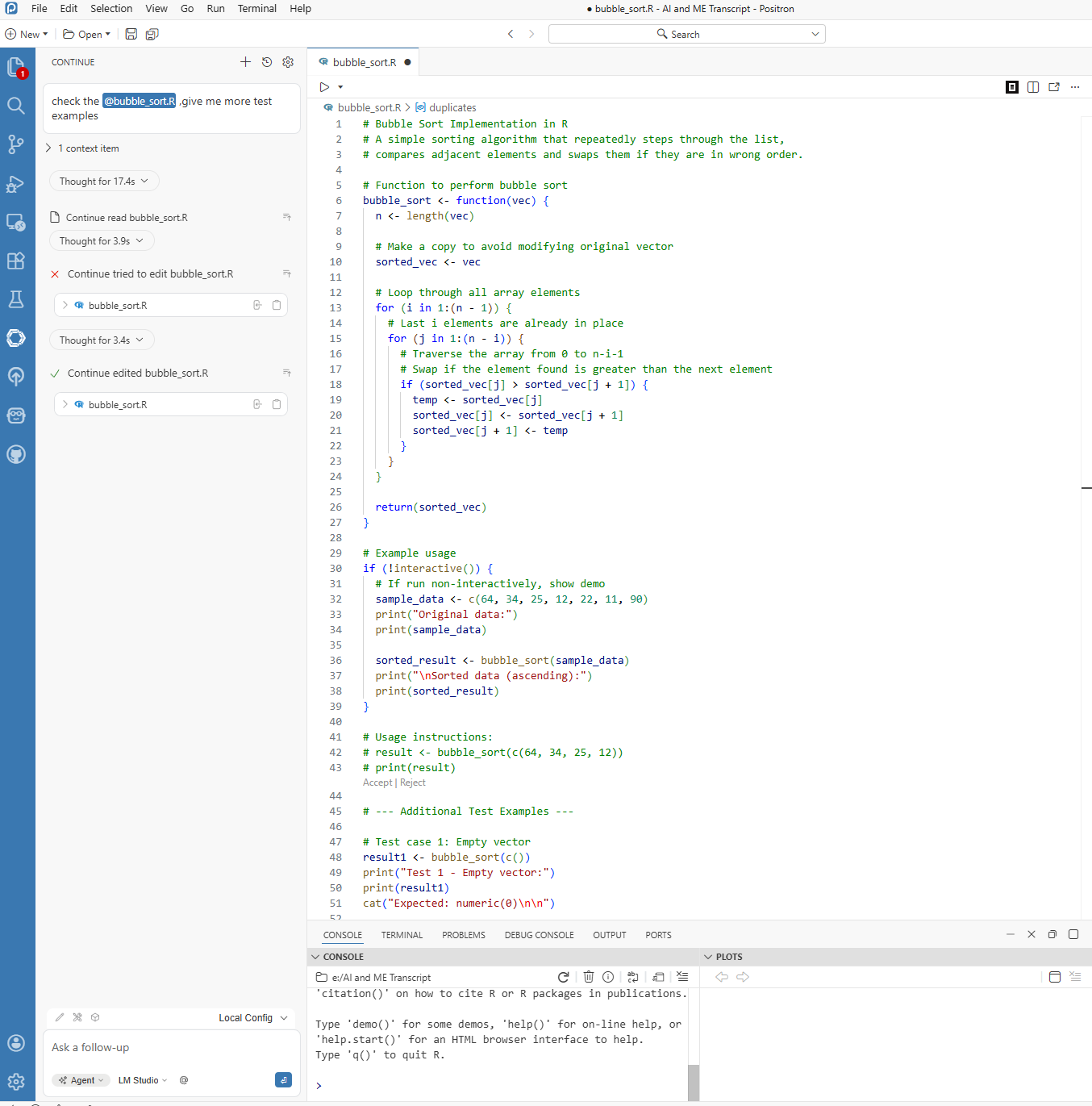
Figure 8.9. Continue proposing edits and test examples for an R script using a local model.
Before testing, check that the endpoint and model in Continue match the server you intend to use.
8.4 Using Positron Assistant
After setup, the following examples illustrate common usage patterns.
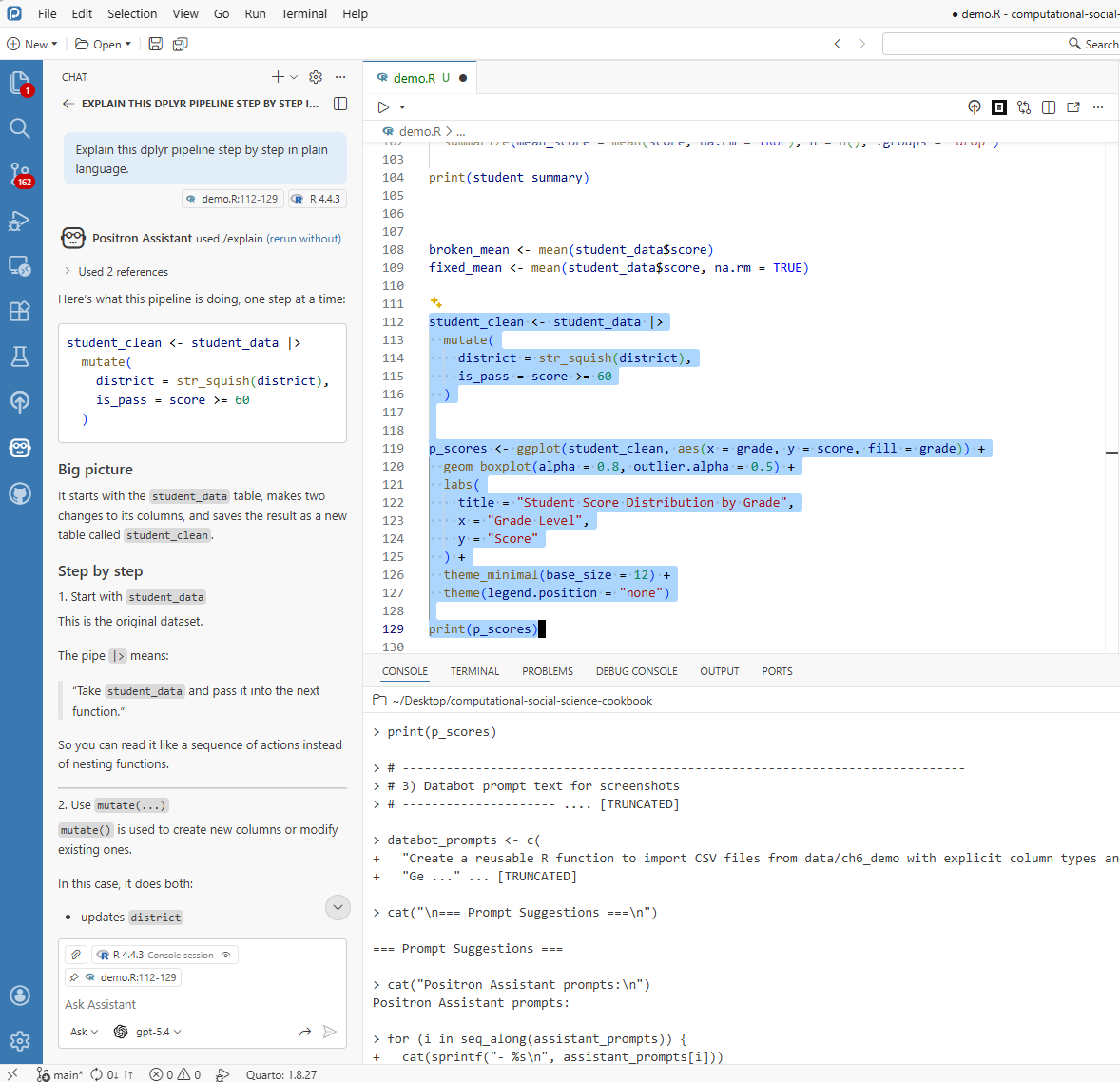
8.4.1 Getting Code Explained
Code explanation is useful when adapting snippets from tutorials, collaborators, or prior projects.
- Highlight the confusing code
- Ask Positron Assistant for a step-by-step explanation
- Review the plain-language interpretation
This feature is especially useful for onboarding new team members and documenting analysis logic.
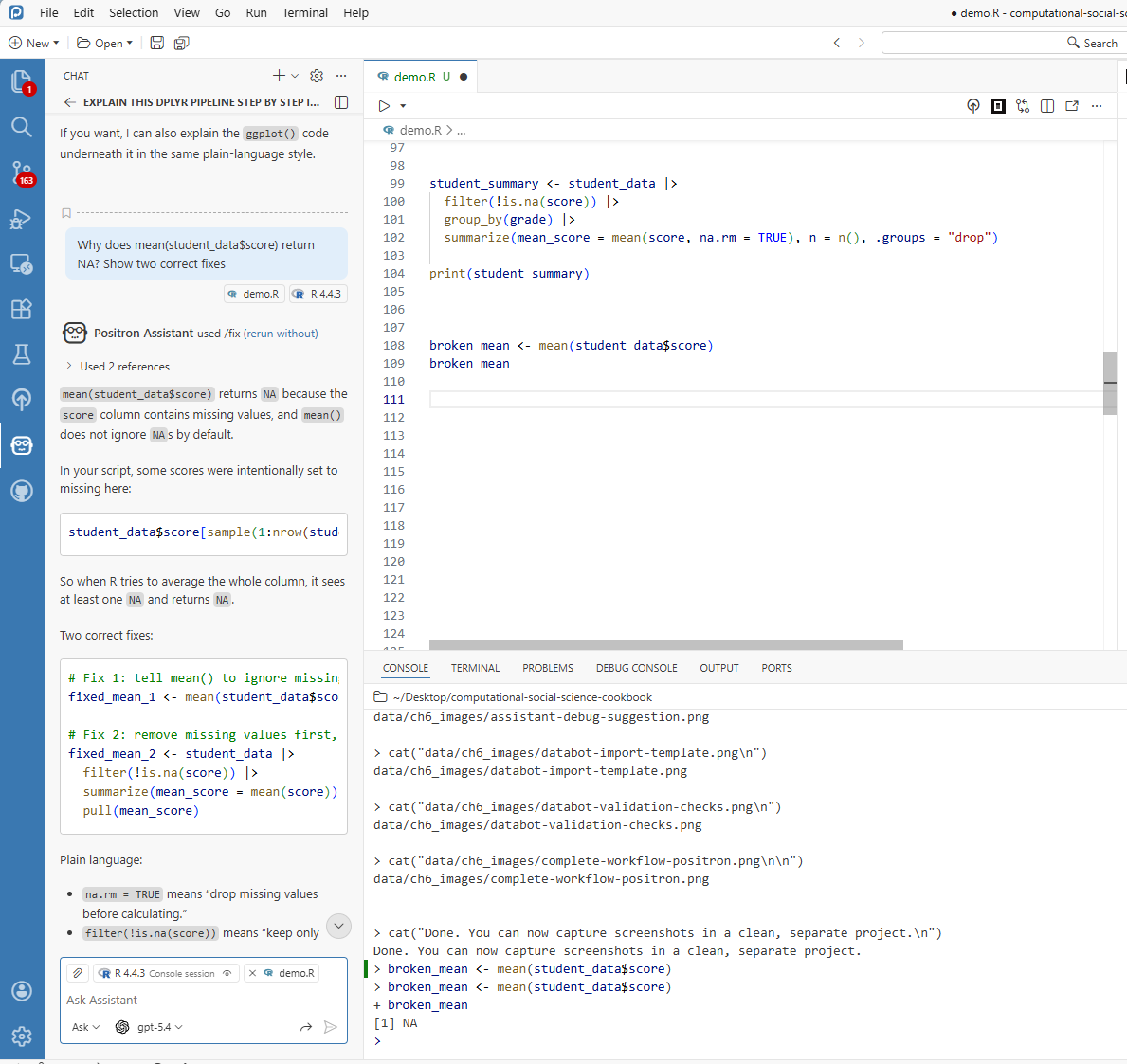
8.4.2 Checking an Unexpected Result
When a numeric score variable contains missing values, the call below returns NA. Missing values alone do not cause mean() to raise an error.
Ask Positron Assistant to explain the missing-value result. A response might suggest:
“Check for missing values in the score variable. If excluding them is appropriate for your analysis, use
na.rm = TRUE; otherwise, decide how they should be handled before calculating the mean.”
Check the data before applying the suggestion, and document how missing scores are handled.
8.5 Databot: Examples of Assisted Exploration
Databot was designed for iterative data exploration, with the ability to generate and run short analysis steps. The examples below show import templates and data checks from that workflow.
Databot has since been deprecated in favor of Posit Assistant. The same need to inspect and test generated code applies when using its successor.
8.5.1 What Can Databot Handle?
Example tasks include:
- Generating import templates — instead of writing “read.csv()” from scratch every time you get a new dataset, let Databot create a reusable function
- Building data cleaning pipelines — those steps you do every single time (convert text to lowercase, strip whitespace, handle missing values) can be automated
- Creating report templates — if you generate similar reports quarterly, Databot can build the skeleton for you
- Setting up quality checks — automated tests that catch data problems before they become headaches
8.5.2 Example: Never Write Import Code Again
Databot can generate reusable import templates for recurring file structures:
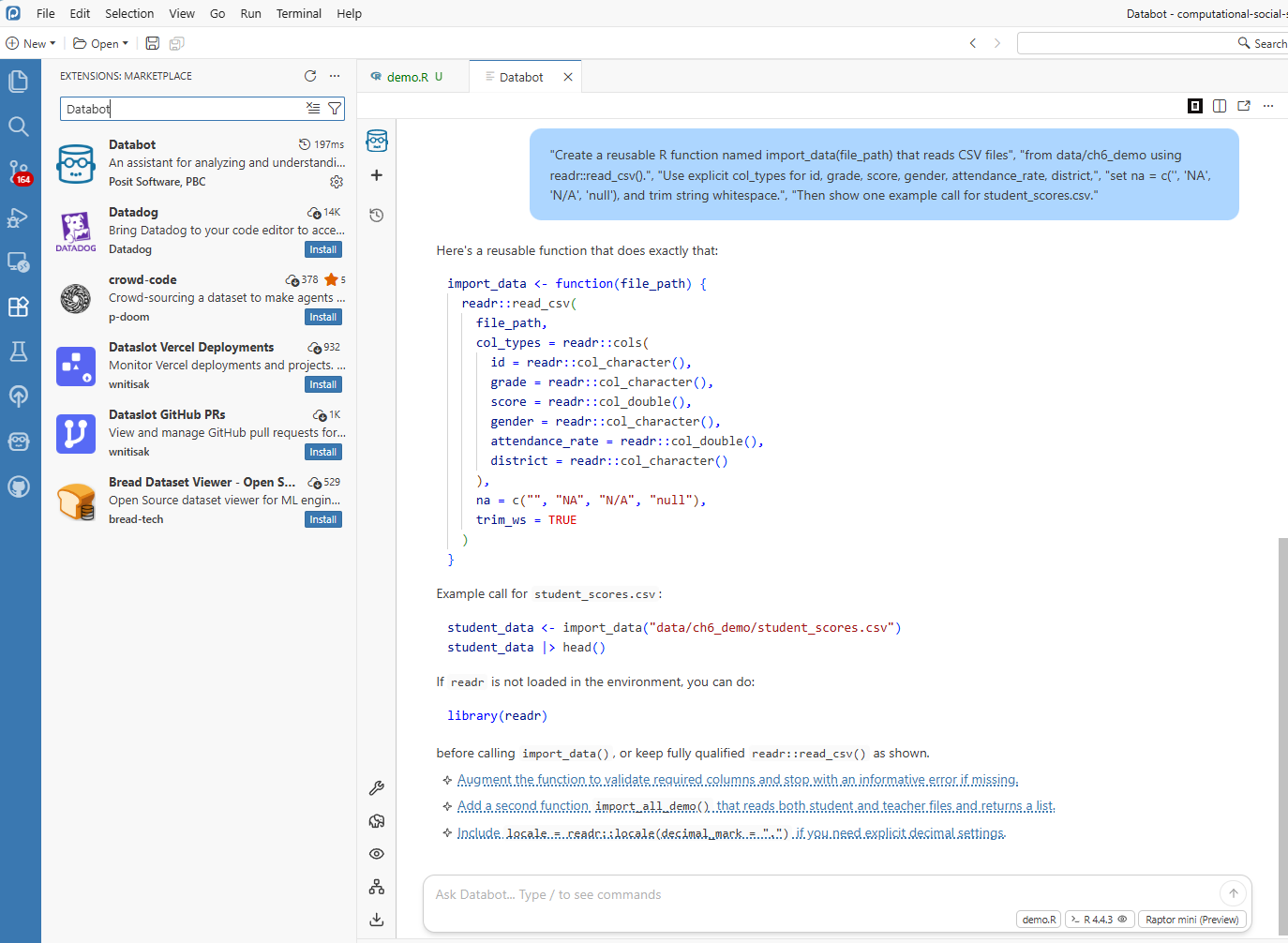
# This template was created once, now you use it forever!
library(readr)
library(here)

import_data <- function(file_path) {
  read_csv(
    file = here("data", file_path),
    col_types = cols(
      id = col_character(),
      score = col_double(),
      grade = col_factor(),
      .default = col_character()
    ),
    na = c("", "NA", "N/A", "null")
  ) |>
  mutate(across(where(is.character), str_squish))
}

# Now importing is one line:
# student_data <- import_data("student_scores.csv")
The resulting function can reduce repeated setup work across similar datasets.
8.5.3 Example: Automatic Quality Checks
For incoming survey datasets, Databot can draft validation checks before substantive analysis begins:
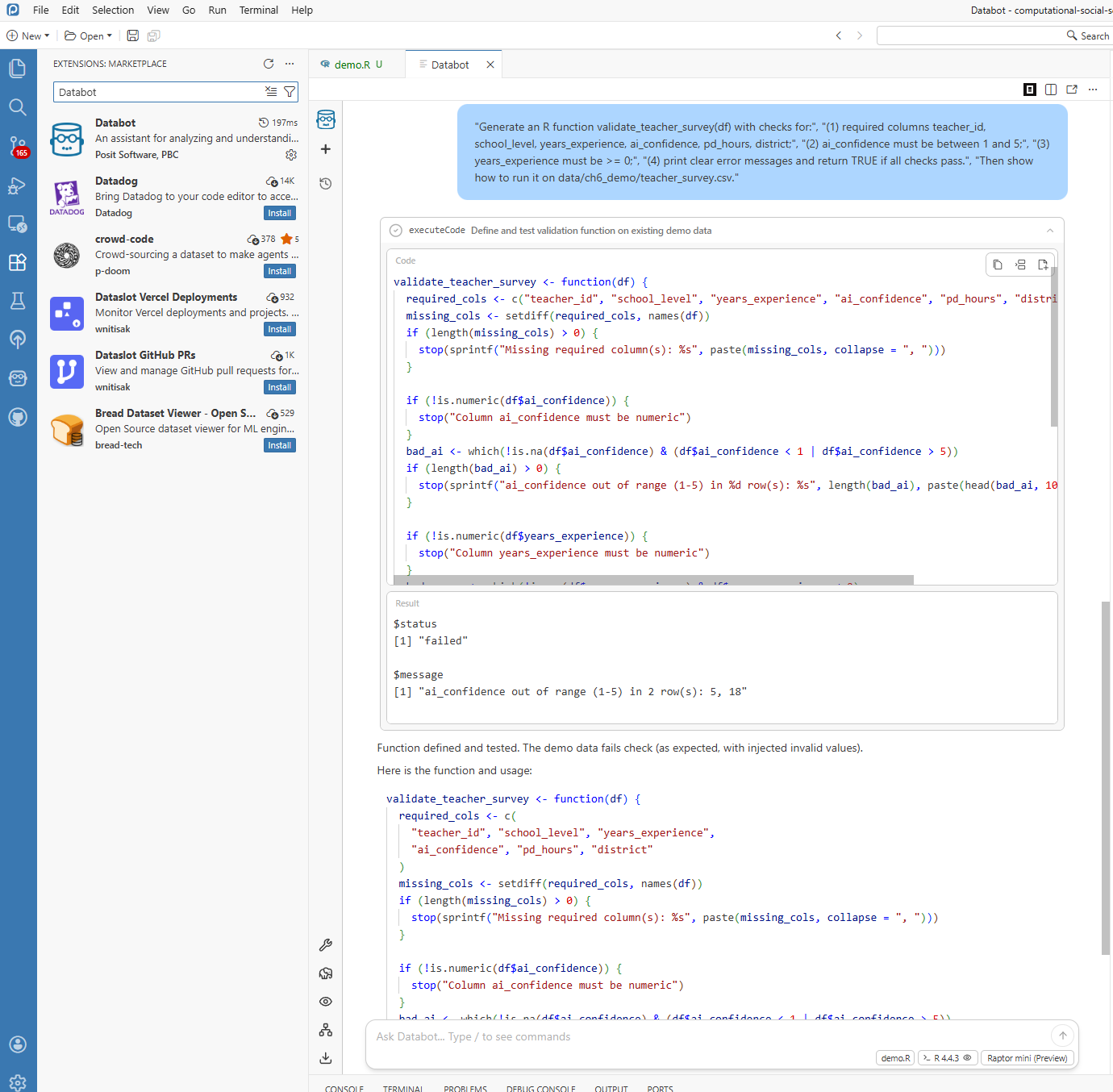
validate_student_data <- function(df) {
  required <- c("id", "score", "grade")
  missing <- setdiff(required, names(df))
  details <- paste(missing, collapse = ", ")
  if (length(missing) > 0) stop("Missing: ", details)
  if (anyNA(df$id)) stop("Missing IDs found")
  bad_score <- df$score < 0 | df$score > 100
  if (any(bad_score, na.rm = TRUE)) stop("Out of range")
  message("All validation checks passed!")
}
This creates a repeatable validation layer that can be applied whenever new data arrive.
8.6 Using These Tools in Research Practice
8.6.1 A Concrete Example
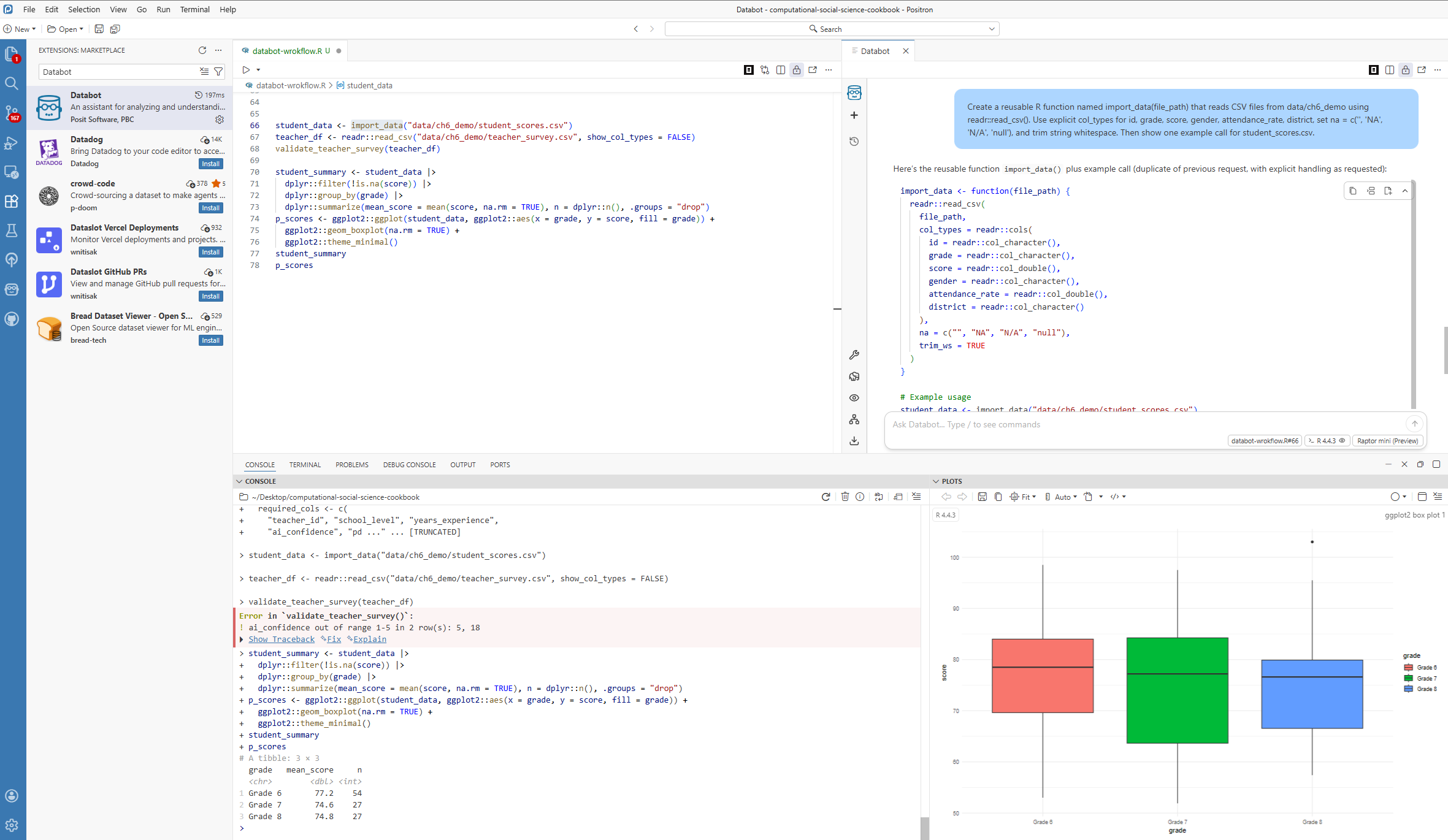
To keep this chapter reproducible, use the demo files from data/ch6_demo/: student_scores.csv and teacher_survey.csv.
The workflow illustrated here has four steps:
- Databot drafts an import function for
student_scores.csv(Section 8.5.2). - Databot generates validation checks for
teacher_survey.csv(Section 8.5.3). - Positron Assistant helps refine or explain the generated code.
- The researcher checks the code, runs the analysis, and inspects the resulting plot.
The screenshot below should show this end-to-end flow in one workspace view: editor code, Databot/Assistant output, Console results, and a plot. The goal is not to present final publication results, but to document a realistic AI-assisted analysis process from import to quality checks to exploratory output.
8.6.2 What This Means for Your Research
The key value is not only speed, but allocation of researcher attention. When routine coding demands are reduced, more effort can be directed toward:
- Understanding your data deeply
- Choosing the right analytical approaches
- Thinking critically about what your findings mean
- Communicating results effectively to your audience
8.7 Working Responsibly with AI Helpers
These tools are useful, but they do not replace researcher judgment. Responsible use requires explicit verification and documentation.
8.7.1 Always Review What You Get
Treat AI-generated code like a first draft from a well-meaning but imperfect colleague. It might be mostly right, but it is probably not perfect. Before you use any code it generates in actual research:
- Test it on a small sample first—run the code on a subset of your data to make sure it does what you expect
- Verify the results against something you know to be true, or compare with a manual calculation
- Add your own comments explaining what the code is doing, especially if the logic is complex
8.7.2 Be Transparent
If AI tools are used in a research workflow, report that usage transparently in the methods section. For example:
“We used the Positron AI Assistant to help generate initial data processing code, which was then reviewed and validated by the authors.”
This makes the analytic process easier for readers to evaluate and replicate.
8.7.3 Keep Things Reproducible
A few tips to make sure your work still holds up:
- Note what version of the AI tools you used
- Keep your human-written code as the authoritative version—do not rely solely on what the AI generated
- Use version control (like Git) to track changes, so you can always see the history of your work
8.7.4 Protect Data and Document AI Use
For AI-assisted workflows, keep a short project log with:
- Positron version
- provider name (for example, Anthropic or GitHub Copilot)
- model name
- date/time of major AI-assisted runs
- what was AI-generated vs. researcher-edited
Also remember the privacy boundary: Positron routes requests to your selected provider. Posit documents that it does not store your prompts and AI conversations, but your chosen provider may have its own data retention policy. Review provider terms before using sensitive data.
8.8 Summary
This chapter highlights a practical integration pattern:
The Positron Assistant and Databot examples show how coding assistants can help with repetitive tasks, code explanations, and exploratory analysis. These tasks still require domain expertise and methodological oversight.
Used well, they amplify core researcher strengths: question design, contextual interpretation, and critical evaluation of evidence.
Key Points to Remember
- Positron Assistant offers real-time code help, explanations, and debugging support
- The Databot examples illustrate exploratory workflows; use current Posit Assistant documentation for new setups
- Always review and validate AI-generated code—it is a starting point, not the final answer
- Being transparent about AI use builds trust with your readers
- These tools free you up to focus on what matters: your research
The next chapter extends this discussion to local LLM workflows for text analysis, with emphasis on privacy-preserving qualitative methods.